
Organize your messages
Keep the Messaging list manageable: flag the conversations you need to come back to, filter to what needs attention, and sort the list the way you work.
Flag a conversation
Section titled “Flag a conversation”- Go to Messaging.
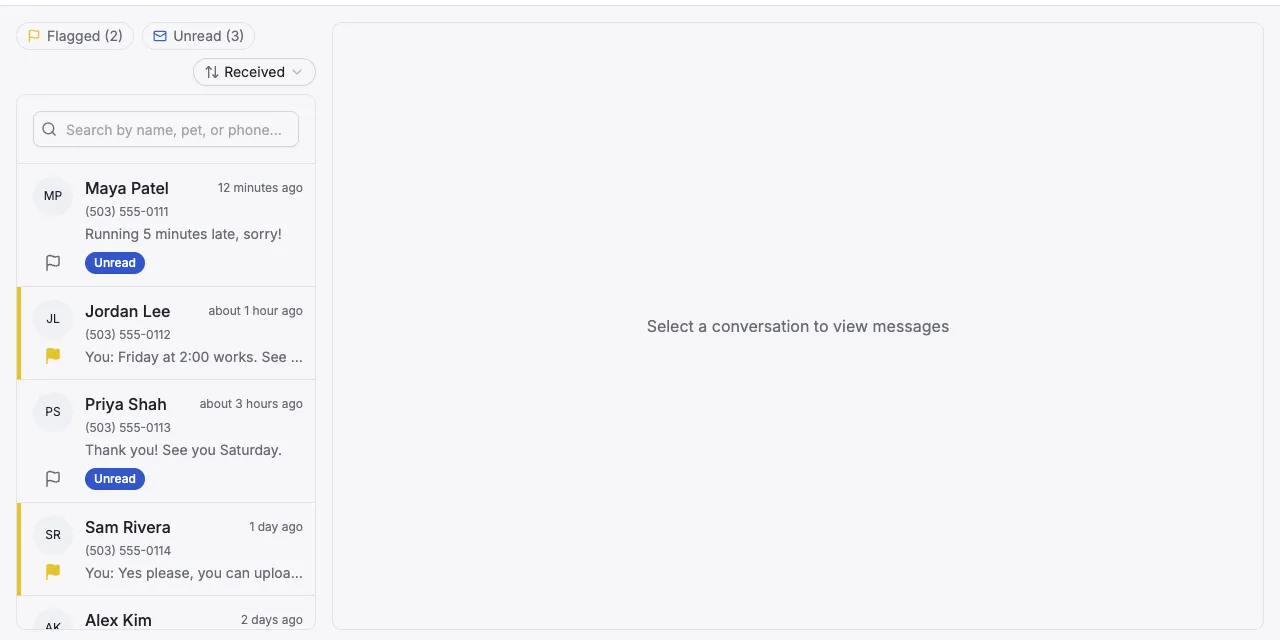
- Click the flag icon on the conversation. On a computer it’s under the customer’s initials. On a phone it’s next to their name.
Flagged conversations get a yellow flag and a yellow edge. Click the flag again to remove it.
Show only flagged or unread conversations
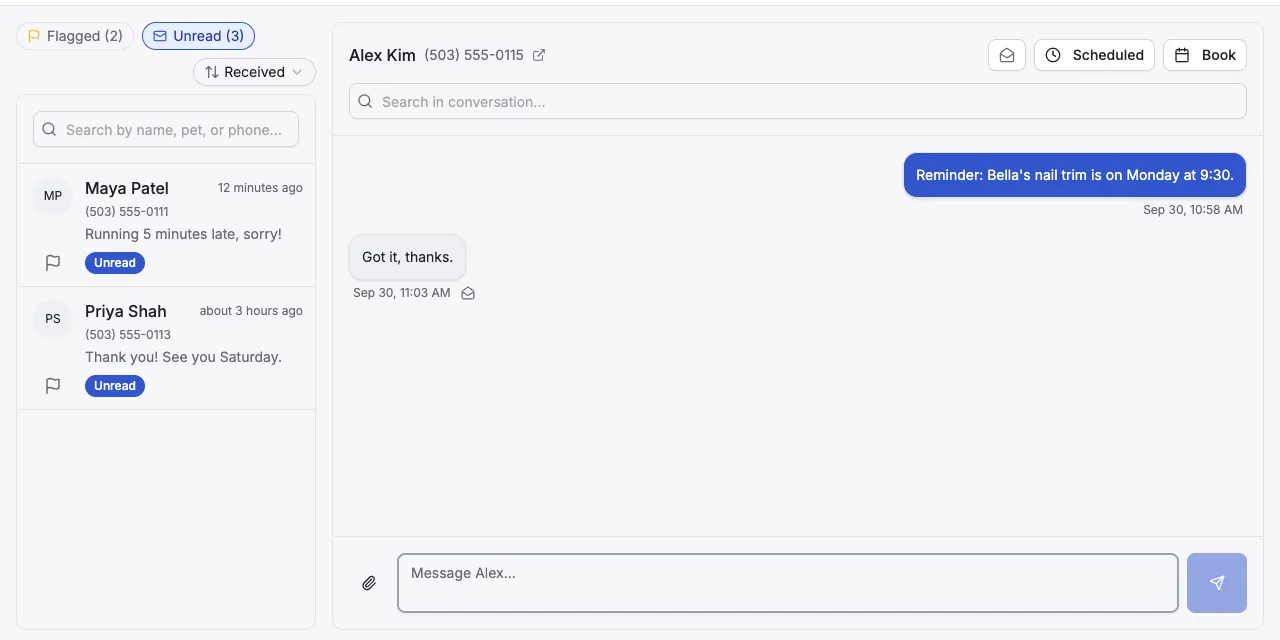
Section titled “Show only flagged or unread conversations”- Above the list, click Flagged or Unread.
- To see everything again, click the same button again.
- Flagged shows how many conversations you’ve flagged, like Flagged (2).
- Unread shows how many unread messages you have, like Unread (3). Conversations with unread messages are labelled Unread in the list.
You can use one filter at a time. Clicking the other one switches to it.
Sort the list
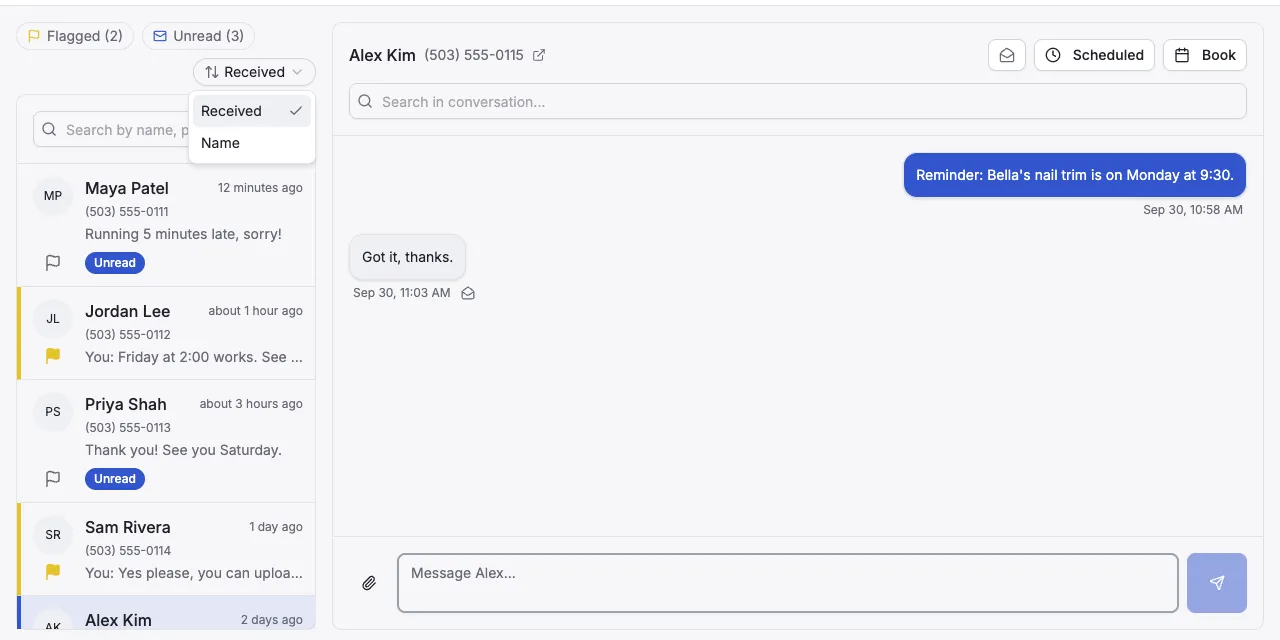
Section titled “Sort the list”- Click the sort menu above the list. It shows Received to start with.
- Choose how to sort:
- Received puts the conversation with the latest message at the top.
- Name sorts by the customer’s name, A to Z.
- Your sort choice is remembered on the computer or phone you chose it on.
- Name sorts by the customer’s main contact. If a conversation is with a second contact on the account, it’s sorted under the main contact’s name.
- Clicking a conversation doesn’t move it. With Received, a conversation only moves to the top when a new message arrives.
- Opening an unread conversation marks it read after 2 seconds. See Mark a conversation read or unread.