
Book an appointment
Use this when a customer calls, texts, or walks in and you want to put their pet on the calendar.
Before you start
Section titled “Before you start”- The pet’s owner needs to be a customer in Packyard. If they’re new, add them under Customers first.
- You need at least one service set up in Settings → Services.
- Go to Appointments.
- Find the day you want, then click an open time in the groomer’s column. The New appointment panel opens on the right.
- Under Pet, type the pet’s name or the owner’s name, then pick the pet from Matches.
- Choose the Service. The time, length, and price show under the fields.
- Change the Start time or Groomer if you need to. To make the visit longer or shorter than the service, change the End time.
- Click Book [pet name] at [time].
- In Notify Customer?, click Notify to send the customer a booking confirmation, or Skip to send nothing.
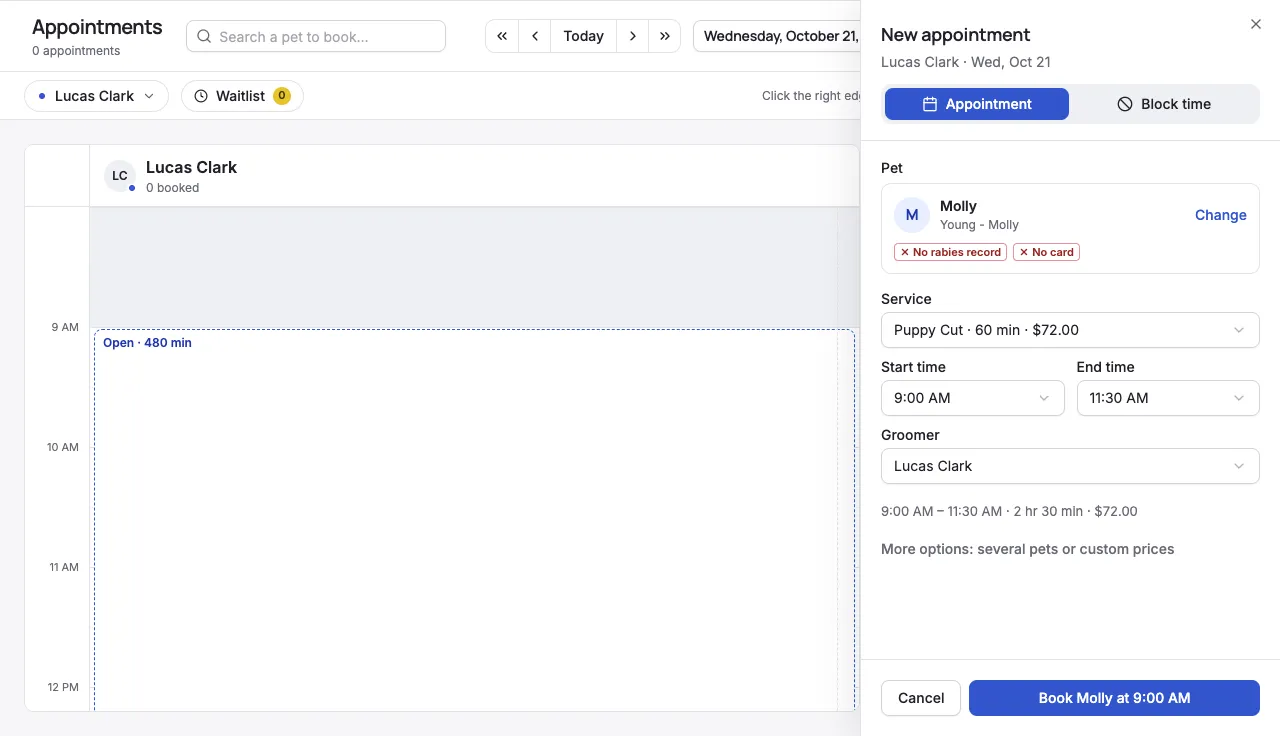
- Warnings on the pet. After you pick a pet, you’ll see tags like No rabies record, Rabies expired, Agreement unsigned, or No card. They’re reminders only. You can still book. Agreement unsigned only shows if you have an agreement set to be signed for bookings.
- Warnings about the service. If the service isn’t set up for the pet’s animal type or breed, or isn’t assigned to that groomer in Settings → Services, you’ll see a warning after you book. The appointment is still booked. Customers booking online can’t pick a service that isn’t set up for their pet.
- Overlapping appointments are allowed. If the new appointment runs into another one, the panel tells you which one and how many dogs the groomer would have at the same time. You can still book it.
- Several pets or custom prices. Click More options: several pets or custom prices to open the full editor.
- Blocking time instead? Click Block time at the top of the panel. See Block time on the calendar.
- Booking from the customer’s page. Open the customer and click Book appointment. If they have more than one pet, choose Book for [pet name]. The calendar opens with that pet picked, so just click an open time.
- Same owner, another pet. Click an existing appointment, open the ⋯ menu, and choose Book another pet at [time].
- Customers with more than one contact. In Notify Customer?, check who should get the message. Contacts who have opted out of texts are marked SMS opted out.
- Reminders. The reminders before the appointment, set in Settings → Reminders → Custom, are scheduled for every booking, even when you click Skip.