
Block time on the calendar
Block time when a groomer isn’t available, like a lunch break, a meeting, or a vet visit. Blocked time shows on the calendar as a striped card, and customers can’t book it online. These steps are for a computer.
Block time
Section titled “Block time”- Go to Appointments.
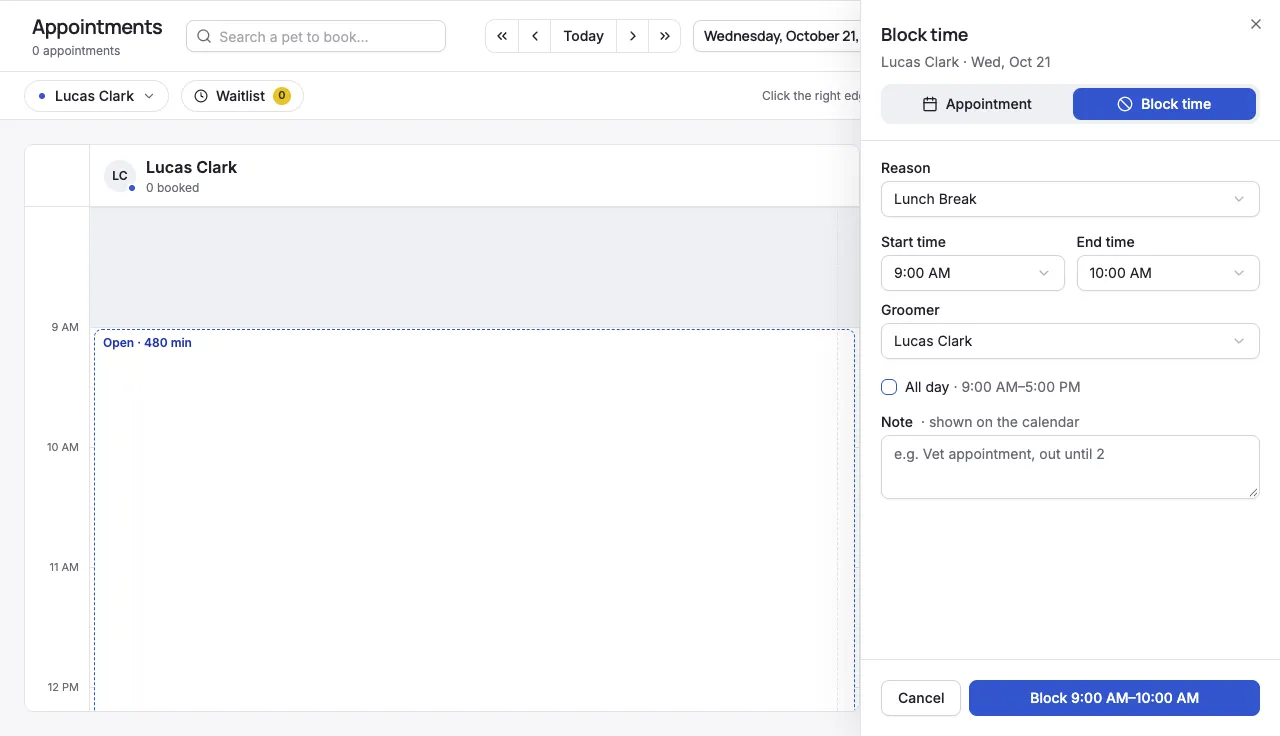
- Find the day, then click an open time in the groomer’s column. The New appointment panel opens on the right.
- Click Block time at the top of the panel.
- Choose a Reason, like Lunch Break, Meeting, Personal Time, Vacation, or Sick Leave.
- Set the Start time and End time. To block the groomer’s whole working day, check All day.
- Check the Groomer.
- Optionally, add a Note. It’s shown on the calendar.
- Click Block [start]–[end], like Block 9:00 AM–10:00 AM.
Change or remove a block
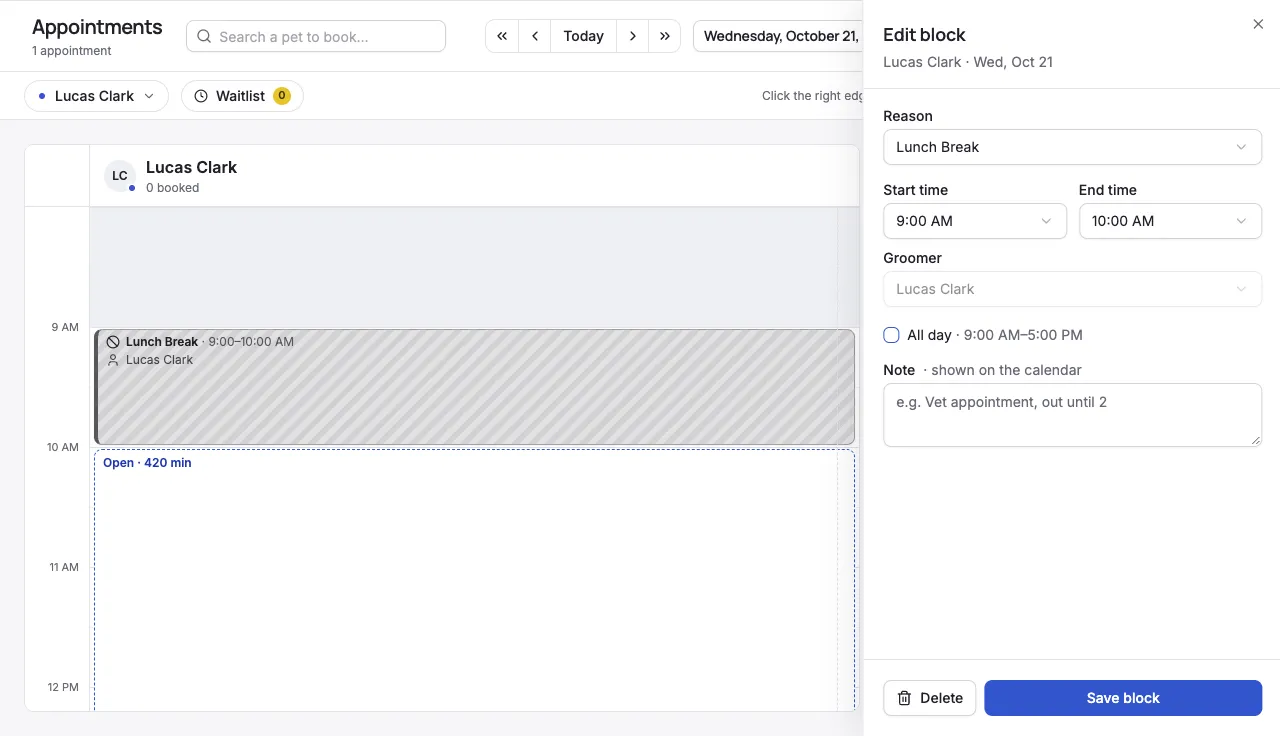
Section titled “Change or remove a block”- Click the block on the calendar. The Edit block panel opens.
- To change it, update the Reason, times, or Note, then click Save block.
- To remove it, click Delete, then Confirm delete.
- Appointments already in that time stay booked. If the block overlaps them, the panel lists them. Move or cancel them separately.
- You can’t move a block to another groomer. Delete it and block the time in the other groomer’s column.
- Taking regular time off? For hours a groomer never works, change their hours instead. See Set business hours.